Waze Multiple Stops: Multi-Stop Route Planner (2026)

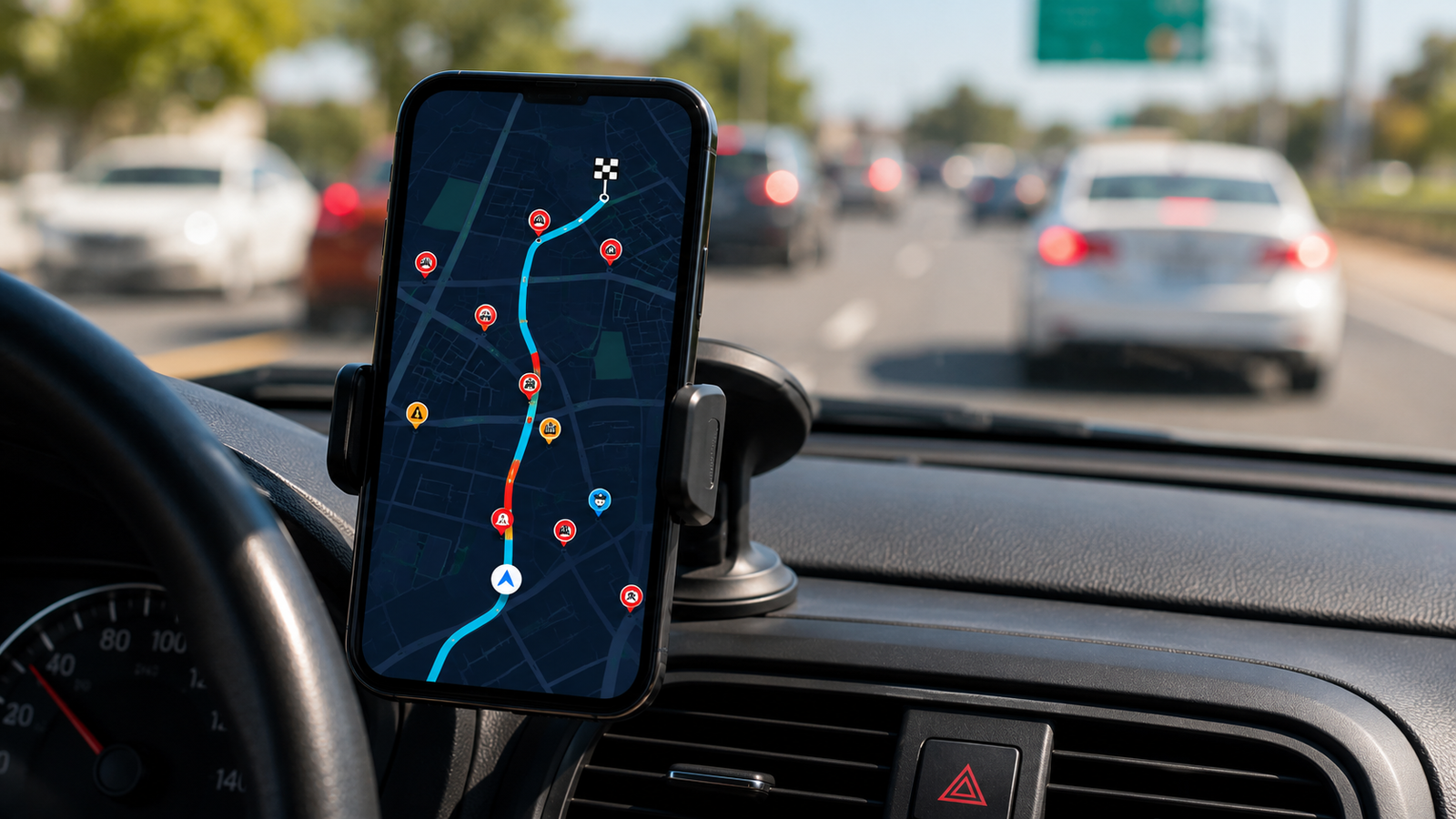
Waze Multiple Stops: Can You Plan a Multi-Stop Route? (2026 Guide)
Here is the honest answer up front: Waze is not a multi-stop route planner. Unlike Google Maps (10 stops) or Apple Maps (15 stops), Waze lets you add only one stop between your start and your destination. That is it — a single mid-route stop. If you searched for a "Waze multiple stops route planner" hoping to load up a full delivery route, Waze on its own simply cannot do it.
But that does not mean Waze lovers are out of luck. Waze is one of the best navigation apps on the planet for live traffic, police alerts, and crowd-sourced hazard warnings — and there is a clean way to keep all of that while planning a proper multi-stop route. This guide covers exactly what Waze can and cannot do with stops, why it works that way, and the simple workflow that lets you optimize a route and still drive it in Waze. Current for 2026.
Keep Waze. Add the stops it can't.
Delivery Route Planner holds unlimited stops, optimizes the order automatically, then opens each one in Waze with a single tap. You keep Waze's live traffic and alerts — without its one-stop limit.
Can you add multiple stops in Waze?
Not really. Waze allows you to add a single stop along the way to your destination — useful for grabbing gas or coffee on a trip, but nowhere near enough for a multi-stop route. There is no way to enter a list of five, ten, or twenty addresses and have Waze route through all of them.
This is the key difference between Waze and the other navigation apps. Where Google Maps and Apple Maps at least let you build a short multi-stop route (even if neither optimizes it), Waze caps you at one intermediate stop. For any real delivery, sales, or service route, that means Waze alone is a non-starter — you need a planner that handles the full list and then feeds stops into Waze one at a time.
How to add a stop in Waze (the one you get)
To add your single allowed stop:
- Open Waze and enter your final destination, then tap to start setting up the drive.
- Before going, tap the option to add a stop along your route.
- Search for the place you want, or pick a preset category like gas stations, restaurants, or parking.
- Select it — Waze adds it as a waypoint on the way to your destination.
- Tap Go to start navigation with live traffic.
That covers a quick errand on the way somewhere. For anything beyond a single detour, you will hit the wall immediately, which is why drivers who run multi-stop days plan the whole route in a dedicated tool first.
Why does Waze limit you to one stop?
Waze was designed first and foremost as a real-time, single-destination navigation app. Its whole identity is built around getting one driver to one place as fast as possible, using live crowd-sourced data — traffic jams, accidents, police, road hazards — reported by its community of users. Multi-stop route planning is a different problem, and Waze simply was not built to solve it.
Interestingly, Waze is owned by Google (which acquired it back in 2013), yet it offers far less multi-stop capability than Google Maps does. That is a deliberate product choice: Waze stays lean and navigation-focused while heavier planning lives elsewhere. The practical upshot for drivers is the same either way — if you need multiple stops, you pair Waze with a real route planner.
Does Waze optimize route order?
No — and the question is almost moot, because Waze cannot hold a multi-stop route to optimize in the first place. With only one allowed stop, there is no sequence to optimize. Even on the leg-by-leg trips you build manually, Waze treats each one as a separate A-to-B drive and leaves any ordering decisions entirely to you.
Bottom line: Waze gives you the best live traffic data of any free app, but zero route-planning intelligence. It will not import addresses, hold more than one stop, or optimize an order. Those jobs belong to a dedicated planner — Waze's job is the driving.
The Waze lover's solution: plan once, navigate in Waze
You do not have to give up Waze to plan multi-stop routes. The cleanest setup keeps Waze as your navigator and offloads the planning:
- Build your route in a dedicated planner. Add all your stops at once — type them, paste a list, import a CSV, or scan addresses off labels.
- Let it optimize. The planner sequences every stop for the shortest time or distance in seconds.
- Open each stop in Waze. Tap a stop and it launches in Waze for turn-by-turn navigation with all the live traffic and hazard alerts you rely on.
- Drive, complete, repeat. Finish a stop, return to the planner, tap the next one — it feels almost native.
This way you get unlimited stops and real optimization plus Waze's unbeatable road intelligence. The Delivery Route Planner is built around exactly this handoff, and it works the same way with Apple Maps and Google Maps if you switch.
Waze vs Google Maps vs Apple Maps vs a dedicated planner
| Feature | Waze | Google Maps | Apple Maps | Route Planner |
|---|---|---|---|---|
| Max stops | 1 | 10 | 15 | Unlimited |
| Optimizes order | No | No | No | Yes |
| Bulk import / scan | No | No | No | Yes |
| Live traffic & hazard alerts | Best in class | Yes | Yes | Via Waze/Maps |
| Best role | Navigation | Navigation | Navigation | Planning |
The pattern is clear: all three free navigation apps are built for driving, not planning, and Waze is the most navigation-pure of the bunch. Use a planner to solve the route, then let Waze do what it does best. You can try that pairing free and keep the Waze experience you already love.
Unlimited stops, then straight into Waze
Plan and optimize your whole route in seconds, capture proof of delivery, and open every stop in Waze, Apple Maps, or Google Maps with one tap. The planning power Waze is missing.
Frequently asked questions
Can you add multiple stops in Waze?
Waze only lets you add one stop between your start and your destination, so it is not a true multi-stop route planner. For routes with several stops, you need a dedicated planner that can hold the full list and then open each stop in Waze for navigation.
How many stops can Waze handle?
Just one intermediate stop. That compares to 10 stops in Google Maps and 15 in Apple Maps. Waze is built for live, single-destination navigation rather than planning multi-stop routes, so its stop capacity is the most limited of the major apps.
Does Waze optimize the order of stops?
No. Because Waze can only hold one extra stop, there is no multi-stop sequence for it to optimize. Even across separate trips, Waze treats each leg as its own A-to-B drive and leaves all ordering to you. Automatic optimization requires a dedicated route planner.
How do I add a stop in Waze?
Enter your destination, then before starting, tap the add-a-stop option and search for the place you want or choose a preset category like gas or food. Waze inserts it as a waypoint on the way. You can only add one such stop per route.
What is the best way to plan a multi-stop route and still use Waze?
Plan and optimize your entire route in a dedicated route planner, then open each stop in Waze one at a time using the planner's one-tap navigation. You keep Waze's live traffic and hazard alerts while gaining unlimited stops and automatic optimization.
Why doesn't Waze have multi-stop routing if Google owns it?
Even though Google acquired Waze in 2013, the two apps are positioned differently. Waze stays lean and focused on real-time, single-destination navigation, while heavier multi-stop planning is left to Google Maps and dedicated tools. The limitation is a product decision, not a temporary gap.
waze multiple stopswaze multi stop route plannercan you add multiple stops in wazehow many stops in wazewaze route plannerwaze add stopsplan route with wazewaze vs google maps stops