Measure Color Temperature With Your Phone (Free App)

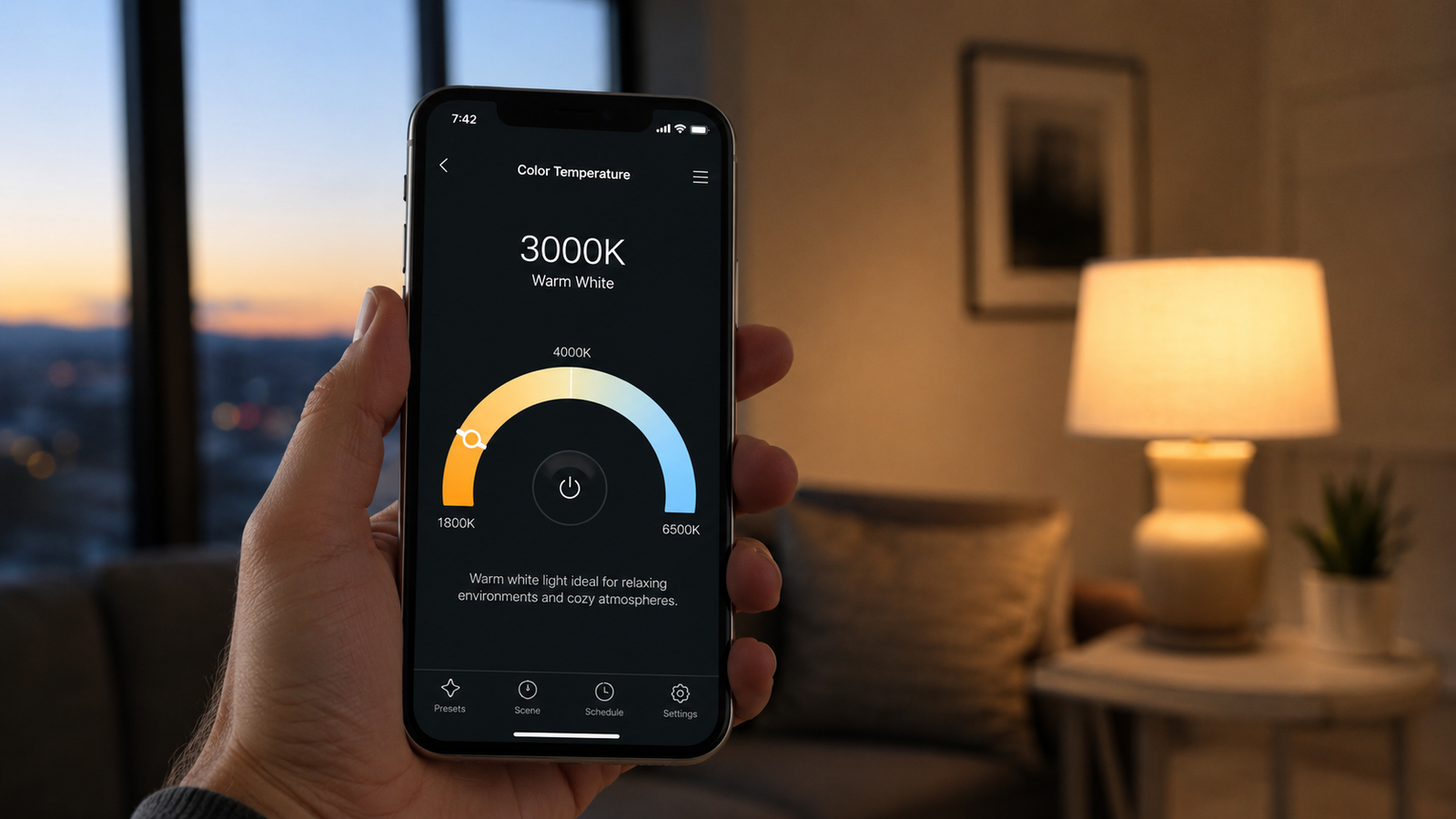
How to Measure Color Temperature With Your Phone (No Light Meter Needed)
If you have ever stood in a lighting aisle wondering whether a bulb is “warm enough,” tried to match two lamps in the same room, or set white balance on a camera and still ended up with an orange or blue cast, you have run into color temperature. It is measured in Kelvin (K), and for years the only way to read it accurately was with a dedicated handheld meter costing a few hundred dollars.
That is no longer true. The camera and sensors already in your iPhone can estimate the color temperature of almost any light source in real time. In this guide you will learn what those Kelvin numbers mean, how to measure color temperature with your phone step by step, how accurate it really is, and when you genuinely need professional gear. If you would rather just point and read, you can download Kelvin Light Scale on the App Store and follow along.
📲 Turn your phone into a light meter
Kelvin Light Scale reads color temperature, lux, and exposure instantly using your camera. Free to use, with pro tools when you need them.
What color temperature actually means
Color temperature describes whether light looks warm and golden or cool and bluish. It is measured on the Kelvin scale, which runs from roughly 1,000K at the deep amber end to over 10,000K at the cold blue end. Counterintuitively, lower Kelvin numbers look warmer and higher numbers look cooler — the opposite of how we usually talk about “hot” and “cold.”
The scale comes from physics: heat a theoretical black object and it glows through red, orange, yellow, white, and finally blue-white as its temperature climbs. A candle sits around 1,800K, a traditional incandescent bulb around 2,700K, midday sunlight around 5,500K, and a clear blue sky can read 10,000K or higher. When you measure a light source with the Kelvin Light Scale landing page tools, that single number tells you exactly where on this spectrum your light falls.
Why you would want to measure it
Knowing the Kelvin value of your light solves a surprising number of everyday problems:
- Matching bulbs: Two “white” bulbs from different brands can be 600K apart, which is enough to make one lamp look yellow next to another. Measure both and buy replacements that match.
- Photography and video: Reading the actual color temperature of a scene lets you dial in custom white balance instead of trusting auto mode.
- Home mood and focus: Warmer light (2,700K–3,000K) relaxes, while cooler light (4,000K–5,000K) improves alertness. Measuring confirms what you actually have.
- Screen and TV calibration: Checking a display against a D65 (6,500K) reference helps you correct a screen that looks too warm or too blue.
You can measure any of these with the app in a few seconds, which is far faster than guessing from a bulb box.
Can your phone really measure color temperature?
Yes — with a sensible understanding of how it works. Your phone does not contain a laboratory-grade spectrometer. Instead, a color-temperature app analyzes the live image from your camera, reads the relative balance of red, green, and blue light, and calculates the correlated color temperature (CCT) from that data. This is the same general principle professional photographers have used for years with gray cards and software.
For the vast majority of real-world tasks — comparing bulbs, setting up a room, checking a video lighting setup, matching a screen — a good phone app is accurate enough to be genuinely useful. Where it can drift is in tricky mixed lighting or when you point it directly at a bright source instead of at a neutral surface. The technique below removes most of that error, and you can practice it as soon as you open the app from the landing page.
How to measure color temperature with your phone, step by step
- Open a color temperature app. Install and launch Kelvin Light Scale, then allow camera access so it can read the scene.
- Find a neutral reference. Hold a sheet of plain white paper or a photographer’s gray card so it is lit by only the light source you want to measure. This is the single most important step for accuracy.
- Fill the frame with the surface. Point the camera at the paper, not at the bulb. Get close enough that the white surface fills most of the preview, so the app reads reflected light rather than the glare of the source itself.
- Avoid shadows and color casts. Keep your hand, clothing, and colored walls out of the frame — a red sweater nearby will warm the reading.
- Hold steady and read the Kelvin value. Let the number settle for a second. The app shows the color temperature in Kelvin, and the pro tools add lux, exposure, tint, and Duv if you need them.
- Take a few readings. Light is rarely perfectly even. Sample two or three spots and use the average for a reliable figure.
That is the entire process. Once it becomes muscle memory you can check any light in under five seconds.
💡 Pro tip for the most accurate reading
Always measure light reflected off a white or gray surface, never pointed straight at the bulb. Aiming at the source overwhelms the sensor and skews the Kelvin number warmer or cooler than the light actually is.
Color temperature quick-reference chart
Use this chart to sanity-check your readings. If your measured value lands near one of these, you will know exactly what kind of light you are dealing with.
| Kelvin Range | Appearance | Typical Source | Best For |
|---|---|---|---|
| 1,800–2,200K | Deep amber | Candlelight, fire | Ambiance, evening wind-down |
| 2,700–3,000K | Warm white | Incandescent, “soft white” LED | Living rooms, bedrooms |
| 3,500–4,100K | Neutral / cool white | “Bright white” LED | Kitchens, bathrooms, offices |
| 5,000–5,500K | Daylight white | Daylight LED, midday sun | Workspaces, garages, studios |
| 6,500K | Cool blue-white (D65) | Screens, overcast daylight | Display calibration reference |
| 8,000K+ | Strong blue | Clear blue sky, shade | Specialty / cool effects |
Phone app vs. a hardware light meter
A dedicated color meter is purpose-built and extremely precise, but it is also expensive, single-purpose, and one more thing to carry. A phone app is always in your pocket, free or inexpensive, and accurate enough for nearly everything that is not a professional film set. Here is how they compare.
| Factor | Phone App | Hardware Meter |
|---|---|---|
| Cost | Free to a few dollars | $200–$1,500+ |
| Always with you | Yes | No |
| Accuracy | Very good for everyday use | Laboratory-grade |
| Extra readings (lux, EV, tint) | Included in one app | Often separate devices |
For most people, the phone wins on convenience and value. You can start measuring today with no extra hardware and only invest in a meter if your work genuinely demands certified precision.
✅ The verdict
If you are matching bulbs, lighting a room, shooting photos or video, or calibrating a screen, your phone is more than accurate enough. Reserve a hardware meter for professional film, scientific, or color-critical print work.
When you need true precision
There are a few situations where a phone estimate is not enough: color-grading a feature film, calibrating displays to broadcast standards, scientific measurement, or commercial printing where Delta-E tolerances matter. In those cases a calibrated spectrometer is the right tool. For everything else — which is to say, almost everything — reading color temperature on your phone is fast, repeatable, and free. The next time you wonder “is this light warm or cool?” you can simply point your camera and find out.
Ready to read any light in seconds?
Kelvin Light Scale measures color temperature, lux, and exposure instantly — right from your iPhone. Free to start, with calibration and pro metrics when you want them.
Frequently asked questions
Can a phone accurately measure color temperature?
Yes. A color-temperature app reads the live camera feed and calculates correlated color temperature from the balance of red, green, and blue light. For matching bulbs, lighting rooms, photography, and screen calibration it is accurate enough to be genuinely useful, especially when you measure off a white or gray surface rather than pointing at the bulb.
What is the best way to get an accurate Kelvin reading on a phone?
Hold a sheet of white paper or a gray card so it is lit only by the light you want to measure, fill the camera frame with that surface, keep colored objects and shadows out of the shot, and take two or three readings to average out unevenness.
Do I need a special light meter, or is an app enough?
For everyday use an app is enough and far cheaper. A dedicated hardware meter offers laboratory-grade precision and is worth it for professional film, broadcast display calibration, or scientific work, but most people never need that level of accuracy.
Why are lower Kelvin numbers warmer than higher ones?
The scale is based on heating a theoretical black object. At lower temperatures it glows red and orange (which we perceive as “warm”), and as the temperature rises it shifts to white and then blue (which we perceive as “cool”). So the physics is the reverse of how we casually use the words hot and cold.
How do I find the color temperature of a light bulb I already own?
Turn the bulb on, let it warm up for a minute, then measure the light it casts onto a white surface with a color-temperature app. Compare the reading to a Kelvin chart to identify whether it is warm white, neutral, daylight, or cool.
What color temperature should my home lighting be?
Warm white around 2,700K–3,000K suits living rooms and bedrooms, neutral 3,500K–4,100K works well in kitchens and bathrooms, and daylight 5,000K–5,500K is best for offices, garages, and task areas. Measuring your existing bulbs first makes it easy to buy matching replacements.
how to measure color temperature with phonecolor temperature meter appmeasure kelvin with iphonecheck light bulb color temperaturewhite balance measurement appmeasure color temperature without a meteriphone light meter appkelvin color temperature chart