iPhone Accelerometer Sample Rate: How Many Hz?

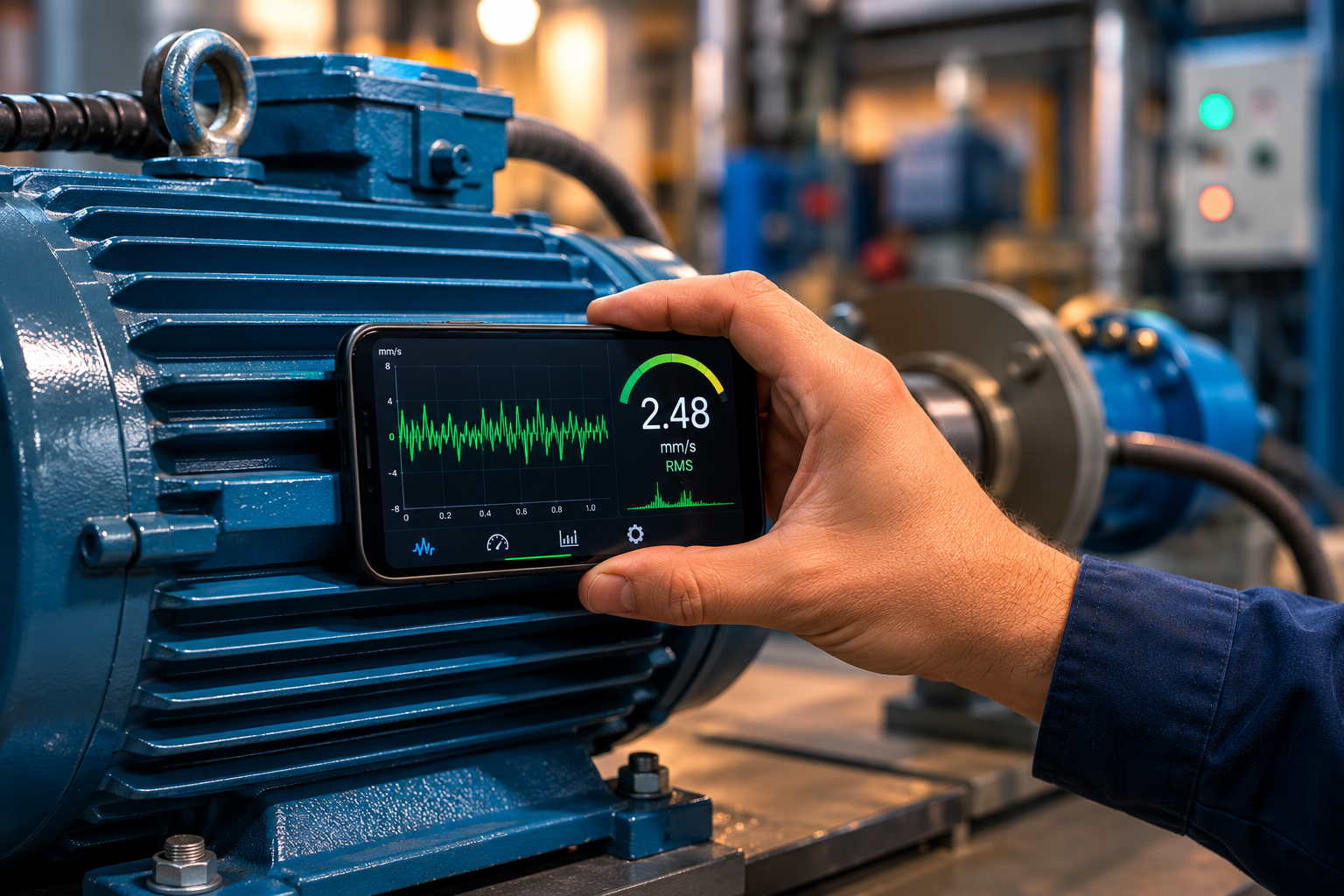
iPhone Accelerometer Sample Rate: How Many Hz and Why It Matters
If you want to measure vibration with an iPhone, the sample rate is the spec that decides what you can and cannot detect. Here is the precise answer: third-party apps can read the iPhone’s accelerometer at a maximum of 100 Hz through Apple’s Core Motion framework. The sensor hardware itself can run faster, but iOS caps what apps are allowed to access at 100 Hz.
That single number sets a hard ceiling on the highest vibration frequency you can faithfully measure — roughly 50 Hz, or machines running up to about 3,000 RPM at their fundamental. This guide explains where the 100 Hz limit comes from, what it means in practice, and how to work within it. The Vibration Detector Sensor app samples at the full 100 Hz the platform allows.
Measuring at the platform’s full 100 Hz
Get live RMS, peak and a frequency spectrum sampled at the maximum rate iOS allows — everything within your phone’s usable range, captured cleanly.
What sample rate does the iPhone accelerometer run at?
Apple’s Core Motion framework — the interface every third-party app uses to read motion sensors — delivers accelerometer data at a maximum of 100 Hz per sample through the standard CMMotionManager. Apple has confirmed this 100 Hz cap directly, and developers consistently find that requesting a faster rate simply gets normalised back down to it. The physical sensor inside the phone can sample at several kilohertz internally, but that raw speed is not exposed to ordinary apps; iOS deliberately limits app-level access to 100 Hz.
There is one higher-rate exception, and it is not the iPhone: Apple’s newer CMBatchedSensorManager can deliver 800 Hz accelerometer data, but only on recent Apple Watch models and only in batched, once-per-second delivery, which suits workout analysis rather than live vibration metering. For an iPhone vibration app like the accelerometer meter, 100 Hz is the working maximum.
Why sample rate matters: the Nyquist limit
You cannot faithfully measure a vibration frequency higher than half your sample rate. That half-point is called the Nyquist frequency, and it is the single most important consequence of the sample rate. At 100 Hz sampling, the Nyquist limit is 50 Hz — so 50 Hz is the highest vibration frequency an iPhone can capture reliably.
Push past that limit and you get aliasing: a real vibration above 50 Hz does not simply vanish, it gets “folded” back and shows up as a false peak at a lower frequency, which can badly mislead a diagnosis. This is why knowing your sample rate matters before you trust a spectrum, and why the sensor app works within the 50 Hz usable band.
Sample rate vs. measurable machine speed
Because a machine’s fundamental vibration sits at its running speed (frequency in Hz = RPM ÷ 60), the Nyquist limit translates directly into a maximum measurable RPM:
| Sample rate | Nyquist (max freq) | Max 1× RPM captured |
|---|---|---|
| 50 Hz | 25 Hz | 1,500 RPM |
| 100 Hz (iPhone max) | 50 Hz | 3,000 RPM |
| 200 Hz (Apple Watch batched) | 100 Hz | 6,000 RPM |
What 100 Hz means for vibration measurement
In practice, the 100 Hz / 50 Hz ceiling shapes which machines a phone can analyse spectrally:
- Up to ~1,200 RPM: the phone captures the running speed (1×) and its first few harmonics cleanly — ideal for full diagnosis.
- 1,800–3,000 RPM: the phone captures the 1× peak (imbalance), but the 2× misalignment peak sits above 50 Hz and aliases, so only the fundamental is reliable.
- 3,600 RPM and above (2-pole machines): even the 1× peak (60 Hz) exceeds the limit, so the spectrum is unreliable — though the overall RMS value can still support basic trending.
So for the large population of 4-, 6- and 8-pole machines running at or below 1,800 RPM, an iPhone covers the fundamental and the most useful harmonics. You can confirm where your machine’s peak lands with the vibration meter and the RPM-to-frequency rule above.
Quick reference: Highest faithful frequency on iPhone ≈ 50 Hz. Highest fully-analysable machine speed ≈ 3,000 RPM for the fundamental, or ~1,500 RPM if you also want the 2× harmonic in range.
A note for developers
If you are building on Core Motion: set accelerometerUpdateInterval (or deviceMotionUpdateInterval) to 0.01 seconds for 100 Hz, but do not assume you got it. iOS normalises out-of-range requests and the true interval can differ from the one you asked for, so always read the timestamp on each sample and compute the real rate before running an FFT. For vibration work the block-based update handler is preferable to passive polling, and a stable, verified sample rate matters far more than chasing a higher nominal one. The Vibration Detector Sensor app already handles this so you can simply read the result.
When 100 Hz isn’t enough
The 100 Hz cap is fine for fundamentals and low-order harmonics, but it cannot reach the high-frequency world of early bearing and gear defects, which often live at hundreds or thousands of hertz. It also falls short for very high-speed machinery. For those tasks you need a dedicated analyser with a high-rate accelerometer. For everything within its band — screening, trending and diagnosing the common low-frequency faults — the app uses the full sample rate the platform offers.
Full 100 Hz sampling, in your pocket
Live RMS & peak in mm/s, a dominant-frequency spectrum within the usable band, session logging and CSV export — sampled at the maximum rate iOS allows.
► Get Vibration Detector Sensor on the App Store | Explore the app →
Note: A smartphone accelerometer sampled at 100 Hz is well suited to low-frequency screening and trending, but it is not a substitute for a high-rate, calibrated analyser when high-frequency or compliance-grade measurements are required.
Frequently Asked Questions
What is the sample rate of the iPhone accelerometer?
Third-party apps can sample the iPhone accelerometer at a maximum of 100 Hz through Apple’s Core Motion framework (CMMotionManager). The hardware sensor can run faster internally, but iOS limits the rate available to apps to 100 Hz per sample.
Can an iPhone sample the accelerometer at 200 Hz?
Not through the standard app interface. CMMotionManager caps third-party access at 100 Hz. Higher rates — up to 800 Hz accelerometer and 200 Hz device motion — are available only through CMBatchedSensorManager on recent Apple Watch models, in batched delivery, not on iPhone apps.
What is the highest vibration frequency an iPhone can measure?
About 50 Hz. Because you cannot faithfully measure above half the sample rate (the Nyquist limit), a 100 Hz sample rate yields a usable maximum of 50 Hz. Vibration above that aliases into false lower-frequency peaks.
What machine speed can a phone measure vibration at?
A phone captures the fundamental vibration of machines up to about 3,000 RPM (1× at 50 Hz). For machines up to roughly 1,500 RPM it also captures the second harmonic, allowing fuller diagnosis. Above 3,600 RPM the fundamental itself exceeds the limit and the spectrum becomes unreliable.
What is aliasing in vibration measurement?
Aliasing is when a vibration frequency higher than the Nyquist limit is recorded as a false, lower-frequency peak instead of being captured correctly. It happens when the sample rate is too low for the vibration present, and it can lead to incorrect diagnoses if you are not aware of your sample rate.
How do I set the accelerometer update rate on iPhone?
In Core Motion, set accelerometerUpdateInterval (or deviceMotionUpdateInterval) to the reciprocal of your target rate — 0.01 seconds for 100 Hz. Because iOS normalises out-of-range values and the true rate can vary, always read each sample’s timestamp and compute the actual rate before any frequency analysis.
iphone accelerometer sample rateiphone accelerometer hzcoremotion accelerometer sample ratecmmotionmanager update intervalmax accelerometer frequency iphonephone accelerometer nyquistaccelerometer 100 hz limitiphone vibration frequency range