How to Optimize Stop Order in Google Maps (2026)

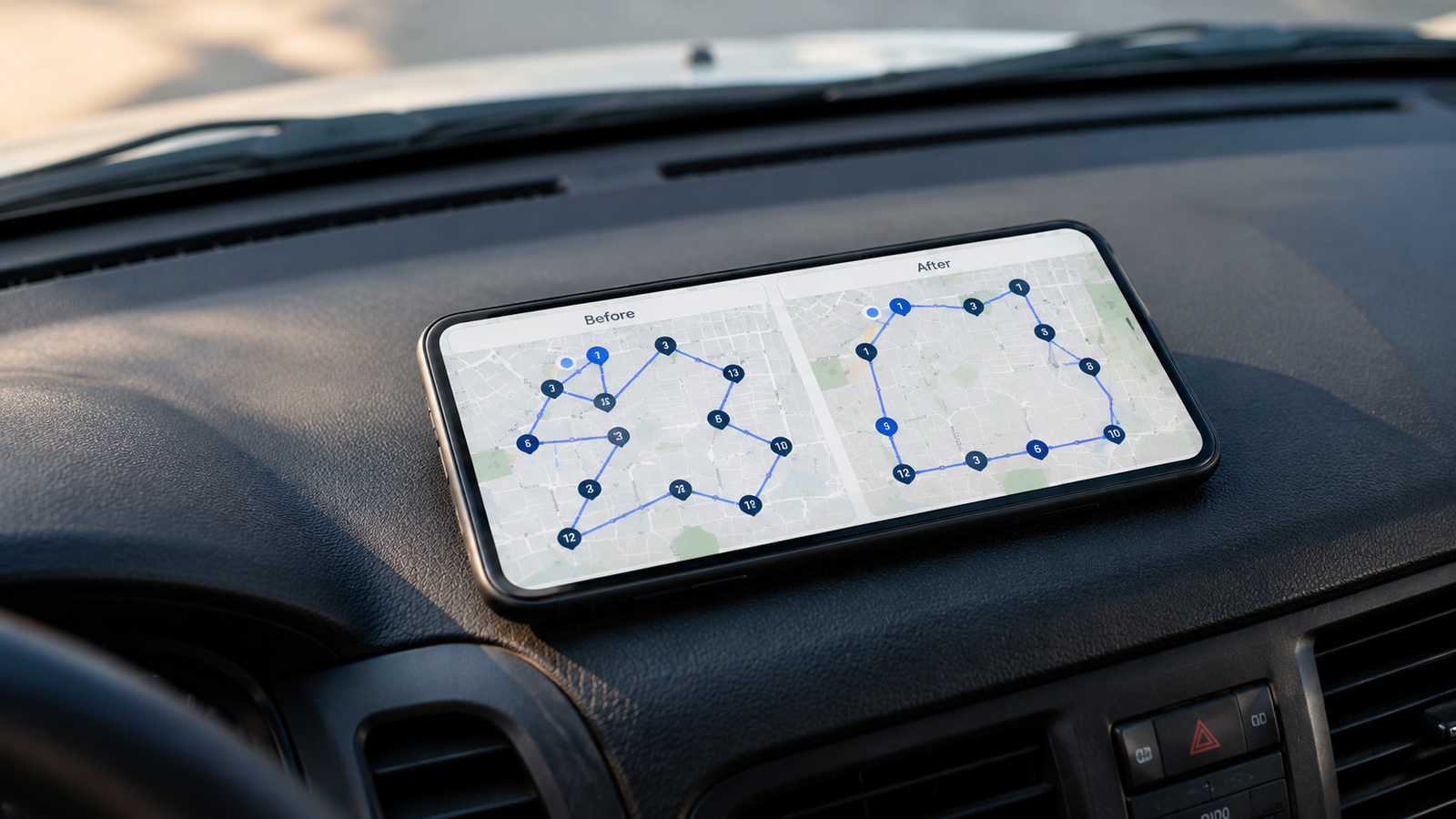
How to Optimize Stop Order in Google Maps (2026 Guide)
Here is the truth most guides bury: Google Maps does not optimize the order of your stops. There is no "optimize route" button anywhere in the app. Google Maps drives you through your stops in the exact order you typed them in — even if that means doubling back across town between stop two and stop three. If you want an efficient sequence, you have to build it yourself by hand.
That surprises a lot of drivers, because every other routing product seems to optimize automatically. This guide explains exactly what Google Maps can and cannot do with stop order, walks through the manual reordering process step by step, shares the sequencing tricks that actually cut your drive time, and shows you when automatic optimization is the only sensible answer. Everything here is current for 2026.
Want the order optimized for you?
Delivery Route Planner reorders your entire route in seconds — shortest time, shortest distance, or a balance of both — then sends each stop to Apple Maps, Google Maps, or Waze. No dragging, no guessing.
Does Google Maps optimize the order of stops?
No. This is the single most important thing to understand. Google Maps will calculate the fastest path between two consecutive stops using live traffic, but it never rearranges the stops themselves into the most efficient overall sequence. Whatever order you enter your addresses in is the order you will drive them.
Compare that to a true route optimizer, which looks at every stop at once and solves for the shortest possible loop through all of them. With Google Maps, that math is on you. For three or four stops you can usually eyeball a sensible order. For a dozen or more, the number of possible orderings explodes and human guessing falls apart fast — which is exactly why drivers with long routes lean on a tool that optimizes automatically.
How to manually reorder stops in Google Maps
Since Google Maps won't do it for you, here is how to drag your stops into a better order by hand. The process is similar on desktop and mobile.
On desktop:
- Open Google Maps and click Directions.
- Enter your starting point and add each destination (remember the 10-waypoint cap, which includes your start).
- In the left-hand directions panel, hover over a stop until you see the drag handle (the dotted icon on the left of each address).
- Click and drag that stop up or down to a new position in the list.
- Watch the total time and distance at the top update as you reorder — use that feedback to find a tighter sequence.
On the mobile app:
- Tap Directions and add your stops.
- Open the list of stops, then press and hold the reorder handle next to a stop.
- Drag it to its new position and release.
- Repeat until the order looks efficient, then start navigation.
It works, but it is slow and entirely manual — you are the optimization engine. If you would rather skip the dragging entirely, you can import your whole list and let the app sequence it in one tap.
Manual sequencing tricks that actually cut drive time
If you are going to order stops by hand in Google Maps, a few principles will save you the most miles:
- Think in loops, not lines. Aim for a circular route that ends near where it began, rather than a zig-zag that crosses your own path.
- Group by zone. Cluster all the stops in one neighborhood together before moving to the next area, instead of bouncing between districts.
- Handle one-way streets and turn restrictions mentally. Google won't factor your vehicle's turning needs into the order, so account for awkward left turns yourself.
- Front-load time-sensitive stops. If a customer is only available in a window, anchor that stop first and build the order around it.
Reality check: Even with perfect technique, manually sequencing 15+ stops is guesswork. There are millions of possible orderings for a route that size, and a human cannot evaluate them. The best manual order is usually still slower than a computed one — which is why "optimize stop order in Google Maps" is a search with no good in-app answer.
That gap is precisely where automatic optimization earns its keep. A planner evaluates the orderings you never could and hands you the shortest one — you can see that on a real route here.
The three ways a real optimizer sequences your route
When you move to a dedicated planner, "optimize" is not one setting — it is a choice about what you are optimizing for. A good route planner gives you distinct modes, because the best order depends on whether your enemy is the clock or the fuel gauge.
| Optimization mode | What it minimizes | Best for |
|---|---|---|
| Shortest Time | Total drive time, using live traffic | Beating a deadline or finishing a shift early |
| Shortest Distance | Total miles driven | Saving fuel and reducing vehicle wear |
| Balanced | A smart mix of time and distance | All-around everyday efficiency |
Google Maps offers none of these — it has no concept of optimizing the whole route at all. With a planner you pick the mode, get the sequence in seconds, and can re-optimize on the fly if a stop gets added or cancelled mid-route. You can try those modes free and watch a messy list become a clean loop.
So how should you optimize stop order?
If you are running three or four stops occasionally, manual reordering in Google Maps is perfectly fine — drag them into a loop and go. If you are running long multi-stop routes regularly, hand-sequencing is costing you time and fuel every single day, and there is no in-app fix because Google Maps was never built to optimize order.
The practical move is to let a dedicated tool compute the order, then keep navigating with whatever map app you already trust. That is exactly the workflow a multi-stop route planner is built around: optimize once, then drive with Apple Maps, Google Maps, or Waze.
Let the route optimize itself
Stop dragging stops around by hand. Delivery Route Planner sequences your entire route for shortest time, shortest distance, or balanced efficiency in seconds — then hands every stop to your favorite navigation app.
Frequently asked questions
Does Google Maps automatically optimize stop order?
No. Google Maps routes you through stops in the exact order you enter them and never rearranges them into the most efficient sequence. It optimizes the path between two consecutive stops using live traffic, but it does not optimize the overall order of the stops. To reorder them you must drag each one manually.
How do I reorder stops in Google Maps?
On desktop, open the directions panel and drag a stop up or down using the handle to its left. On the mobile app, open your list of stops, press and hold the reorder handle next to a stop, and drag it to a new position. Watch the total time and distance update to judge whether the new order is better.
Why doesn't Google Maps have an optimize route button?
The free consumer Google Maps app is built for personal navigation, not multi-stop logistics. Whole-route optimization lives in Google's paid developer platform, not the app you drive with. As a result there is simply no optimize-order feature inside the consumer app, on any device.
What is the best order to drive multiple stops?
The most efficient order is usually a loop that groups nearby stops together and ends close to where it began, avoiding backtracking. For a few stops you can plan this by hand. For many stops, the number of possible orders is too large to judge manually, so a route optimizer that computes the shortest sequence is far more reliable.
Can I optimize a route for shortest distance instead of fastest time?
Not in Google Maps, which offers no route-order optimization at all. A dedicated route planner does let you choose: shortest time uses live traffic to beat the clock, shortest distance minimizes total miles to save fuel, and a balanced mode blends the two for everyday efficiency.
Is there an app that optimizes stop order automatically?
Yes. Delivery Route Planner automatically sequences your entire route for shortest time, shortest distance, or balanced efficiency in seconds, lets you re-optimize on the fly if plans change, and opens each stop in Apple Maps, Google Maps, or Waze for navigation.
how to optimize stop order in google mapsdoes google maps optimize routereorder stops google mapsgoogle maps route optimizationbest order for multiple stopsoptimize multi stop routegoogle maps optimize route buttonautomatic route optimizer app