How to Import Addresses From CSV Into a Route Planner

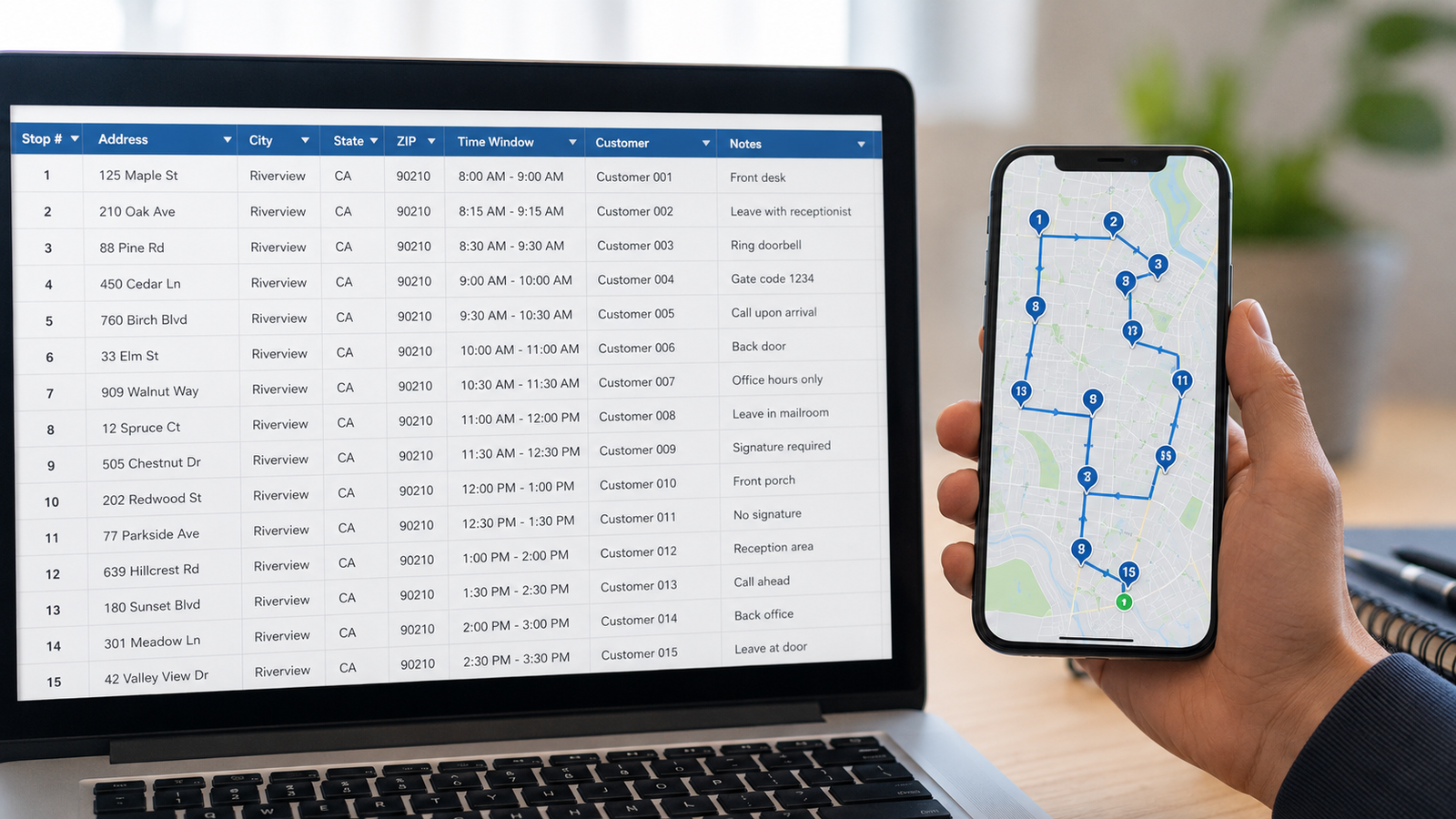
How to Import Addresses From a CSV Into a Route Planner (2026 Guide)
If you've got your delivery stops sitting in a spreadsheet — exported from your online store, a CRM, an order list, or just a list you built — the last thing you should be doing is typing them into a route app one by one. CSV import loads all of them at once, turning a hundred-row spreadsheet into a ready-to-optimize route in a couple of minutes.
This guide walks through exactly how to import addresses from a CSV into a route planner: how to prepare your file so it imports cleanly, the step-by-step process, the common problems that trip people up, and how to fix them. Get the file right and the rest is effortless. Current for 2026.
From spreadsheet to optimized route
Delivery Route Planner imports hundreds of addresses at once from a CSV file, text, or your clipboard — then optimizes the order and navigates each stop in Apple Maps, Google Maps, or Waze.
What is CSV import and why use it?
A CSV (comma-separated values) file is a simple spreadsheet format that almost every system can export — Shopify, WooCommerce, a CRM, an accounting tool, or plain Google Sheets and Excel. CSV import lets a route planner read that file and create a stop for every row in one go, instead of you entering each address by hand.
For anyone routing more than a handful of stops, this is the difference between minutes and a tedious half hour of typing. If your orders already live in a spreadsheet, importing them straight into a route planner is by far the fastest way to build your route.
How to prepare your CSV file
A clean file imports cleanly. Spend two minutes here and you'll avoid almost every problem later.
- One stop per row. Each address should be its own row in the spreadsheet — no combining two deliveries into one line.
- Format the address consistently. Either put the full address in a single column (for example, "123 Main St, Springfield, IL 62704"), or split it into separate columns for street, city, state, and ZIP. Pick one approach and use it for every row.
- Include a header row. A top row labeling your columns (Address, City, State, Zip) helps an importer map the data correctly.
- Clean the data. Delete blank rows, remove stray notes from the address cells, and fix obvious typos before you import. Garbage in, garbage out.
With a tidy file ready, the actual import is the easy part — you can see how the import flow works here.
How to import your CSV into a route planner
The process is similar across good route planners:
- Open the import option. Look for an "Import" or "Add stops" choice and select the CSV or file option.
- Select your file. Choose the CSV from your phone, cloud storage, or wherever you saved it.
- Map your columns if prompted. Tell the app which column holds the address (or street, city, state, ZIP) so it reads the data correctly.
- Review the stops. Check that addresses imported correctly and resolve any flagged as ambiguous or unrecognized.
- Optimize and go. Once your stops are in, let the app sequence them into the fastest order and start navigating.
That's it — a full route loaded in the time it used to take to type a few addresses. You can try importing a list free.
Other ways to bulk-add addresses
CSV isn't the only fast option. If your addresses are in an email, a message, or a notes app, many planners also let you paste a block of text from your clipboard — one address per line — and create stops from that instantly. It's handy when a customer sends you a list or you copy stops out of another app. A flexible planner accepts CSV, text, and clipboard so you're never stuck typing.
Common CSV import problems and how to fix them
| Problem | Fix |
|---|---|
| Address not recognized | Add the city and ZIP; spell out the street fully |
| Wrong column imported | Re-map columns or add a clear header row |
| Duplicate stops | Remove duplicate rows before importing |
| Ambiguous location | Confirm the right match when the app flags it |
| Garbled characters | Save the file as standard CSV (UTF-8) |
Nearly all of these trace back to messy source data, so a quick cleanup of your spreadsheet before importing prevents most of them. Once your stops are in cleanly, the optimizer takes over.
After import: optimize and navigate
Importing is only step one — the payoff is what happens next. With all your stops loaded, a route planner sequences them into the fastest order (shortest time or shortest distance), lets you set a custom start and finish, and then hands each stop to Apple Maps, Google Maps, or Waze for turn-by-turn navigation. The spreadsheet you started with becomes a clean, drivable route. That full loop — import, optimize, navigate — is what makes a dedicated planner worth it.
Turn your spreadsheet into a route
Import hundreds of addresses from a CSV, text, or clipboard, optimize the order in seconds, and navigate every stop with Apple Maps, Google Maps, or Waze. No more typing addresses one by one.
Frequently asked questions
How do I import addresses from a CSV into a route planner?
Prepare a CSV with one address per row, open the import option in your route planner, select the file, map your columns if prompted, review the imported stops, and then optimize the route. A clean, consistently formatted file imports in seconds.
How should I format a CSV of addresses for importing?
Use one stop per row, and either put the full address in a single column or split it into street, city, state, and ZIP columns — consistently across every row. Add a header row to label the columns and remove blank rows and stray notes before importing.
Why didn't my address import correctly?
The most common causes are incomplete addresses (missing city or ZIP), the wrong column being read, duplicate rows, or special characters from a non-standard file format. Adding city and ZIP, mapping columns correctly, and saving as standard UTF-8 CSV fixes nearly all import issues.
Can I import addresses without a CSV file?
Yes. Many route planners also let you paste a block of text from your clipboard — one address per line — and create stops from it. That's useful when your addresses are in an email, a message, or another app rather than a spreadsheet.
How many addresses can I import at once?
A good route planner can import hundreds of addresses in a single CSV, far beyond what you'd ever type by hand. The exact limit depends on the app, but bulk import is designed specifically for large lists that manual entry can't handle efficiently.
What happens after I import my addresses?
Once your stops are imported, the route planner optimizes them into the fastest order, lets you set custom start and end points, and opens each stop in Apple Maps, Google Maps, or Waze for navigation — turning your spreadsheet into a fully drivable, optimized route.
how to import addresses from csv into route plannercsv address import route plannerbulk import addresses route appupload addresses to route plannerimport delivery addresses spreadsheetcsv route planneradd multiple addresses at oncepaste addresses route planner