How to Add More Than 10 Stops in Google Maps (2026)

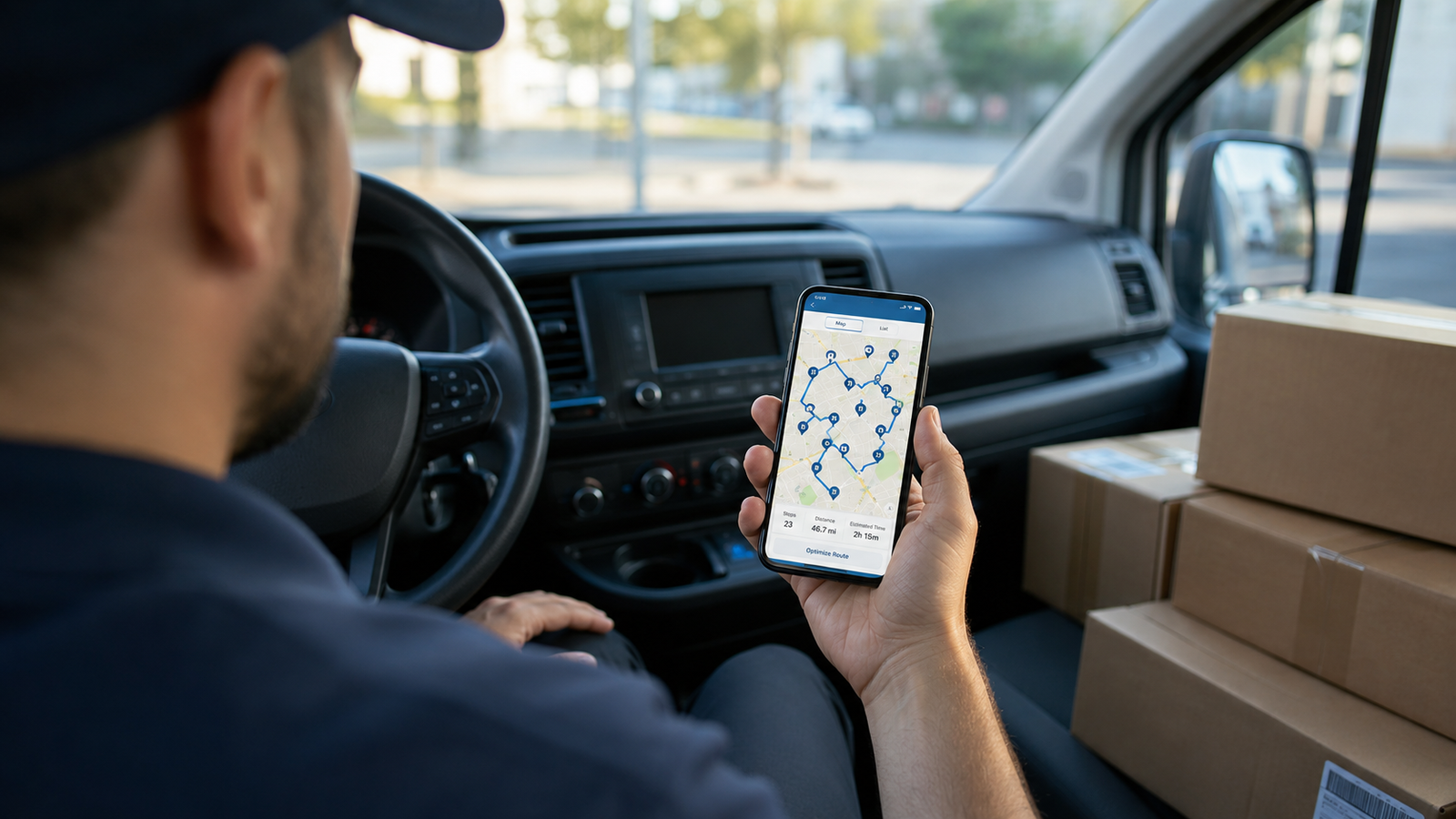
How to Add More Than 10 Stops in Google Maps (2026 Guide)
If you plan routes for a living — deliveries, courier runs, sales calls, service visits — you have almost certainly hit the wall: you start adding addresses in Google Maps, and somewhere around the tenth one the app simply refuses to take another. You are not doing anything wrong. Google Maps caps every route at 10 total waypoints, and that count includes your starting point. In practice that means one start location plus nine stops, and then you are done.
This guide explains exactly why that limit exists, walks through every realistic workaround for adding more than 10 stops in Google Maps — the manual splits, the URL-merging trick, Google My Maps, and the developer API — and shows you when it is finally worth switching to a dedicated multi-stop planner. Every method here is tested and current for 2026, and we will be honest about the trade-offs of each, because most "hacks" you will find cost you more time than they save.
Skip the workarounds entirely
Delivery Route Planner adds unlimited stops, optimizes the order automatically, and hands each stop off to Apple Maps, Google Maps, or Waze with one tap. No URL splitting, no spreadsheets, no 10-stop ceiling.
Why Google Maps limits you to 10 stops
The 10-waypoint cap is not a bug or a setting you can change — it is a deliberate constraint baked into the free consumer version of Google Maps on iPhone, Android, and the web browser. The consumer app runs on a different routing engine than the paid Google Maps Platform that logistics companies build on. The consumer engine is tuned for personal trips and road trips, not for a driver running forty or fifty drop-offs in an afternoon.
There are two practical consequences worth understanding before you pick a workaround. First, the limit counts your origin, so you genuinely only get nine destinations after your start. Second, and this is the part that frustrates professional drivers most, Google Maps does not optimize the order of your stops. It routes you through them in exactly the sequence you typed them in. If you want the shortest path, you have to drag each stop into a better order yourself and eyeball the result. For a handful of stops that is annoying; for a real route it is impossible to do well by hand. If that already sounds like your daily reality, a purpose-built tool like the Delivery Route Planner app removes both problems at once, but let us cover the free routes first.
Method 1: Split your route into batches of 10
The most common manual workaround is the simplest: break your full list into separate routes of 10 waypoints each. If you have 35 stops, you build four routes — three with 10 and one with the remaining five — run the first to completion, then open the next.
How to do it:
- Open Google Maps and tap the Directions button.
- Enter your starting point, then your first destination.
- Tap Add stop and keep adding addresses until you reach the 10-point limit.
- Drag the stops into the best order you can judge by hand to cut down on backtracking.
- Start navigation. When you finish that batch, repeat the whole process for the next 10.
The catch: this eats 20 to 30 minutes of setup for a big route, it is easy to mis-split your list or skip an address, and crucially there is no optimization across the batches. Your "batch one" and "batch two" might both send you to the same neighborhood at different times of day. It works in a pinch, but it does not scale. Drivers who run the same area daily usually graduate to a planner that keeps the whole route in one place — you can compare that workflow here.
Method 2: Merge multiple route URLs into one link
A handful of free web tools (search for "MoreThan10" and similar) let you build several short Google Maps routes, copy each route's URL, and paste them in to be stitched into a single combined link you can open in Google Maps. This is a clever trick for planning a long personal road trip in advance.
For working drivers, though, it shares the same fundamental weaknesses as splitting by hand: the merged link still respects Google's underlying waypoint cap when it actually opens for navigation, the tool does not optimize stop order for efficiency, and you are bouncing between a desktop browser and your phone to set it up. It is a planning aid, not a driving tool. If you are doing this every morning before a shift, the time cost is real, and an app that imports your whole address list at once will pay for itself in saved minutes within a week.
Method 3: Google My Maps (more stops, but a big trade-off)
Google My Maps is a separate, free Google product for building custom maps. You can plot far more than 10 locations on a single My Maps layer, which makes it look like the perfect answer to the stop limit.
Heads-up: Google My Maps does not provide turn-by-turn voice navigation. It shows your stops on a map, but it cannot guide you stop-to-stop with live traffic the way the main Google Maps app does. For trip planning it is useful; for actually driving a delivery route, it falls short on the one thing you need most.
My Maps is best thought of as a visual planning canvas. If you want something that both holds unlimited stops and navigates you through them turn by turn, you have moved past what Google's free tools were built to do. That is the gap a dedicated route planner fills.
Method 4: The Google Maps Platform API (why it is not for drivers)
You may read that "Google supports 25 waypoints." That is true — but only of the paid Google Maps Platform developer API, not the app on your phone. The API is meant for engineers building their own software. It bills per request (roughly a few dollars per thousand calls), it gives you raw routing data rather than a usable navigation screen, and you would need to build an entire app around it before you could drive a single stop.
Unless you are a developer with time to spare, this is not a workaround — it is a software project. The good news is that other people have already done that work for you and wrapped it in a driver-friendly app. The Delivery Route Planner uses professional routing under the hood so you never touch an API.
The real fix: a dedicated multi-stop route planner
Every method above is a way to tolerate the 10-stop limit. A dedicated planner removes it. Here is what changes when you stop fighting Google Maps and use a tool built for the job:
- Unlimited stops. Add dozens or hundreds of addresses in one route — no batching, no merging.
- Automatic optimization. The app reorders all your stops into the fastest or shortest sequence in seconds, instead of you dragging them by hand and hoping.
- Fast address entry. Bulk-import from a CSV file or pasted text, or scan an address straight off a shipping label with your camera.
- One-tap navigation. Each stop opens in Apple Maps, Google Maps, or Waze for the turn-by-turn directions you already trust.
- Driver tools. Add service time per stop for realistic ETAs, capture proof-of-delivery photos, and track which packages are where in your vehicle.
Here is how the options stack up side by side.
| Method | Max stops | Optimizes order? | Turn-by-turn nav? | Best for |
|---|---|---|---|---|
| Google Maps (single route) | 10 incl. start | No | Yes | Quick personal trips |
| Split into batches of 10 | Unlimited (manual) | No | Yes | Occasional longer routes |
| URL-merging tools | Limited by Maps | No | Partial | Pre-planned road trips |
| Google My Maps | Many | No | No | Visual planning only |
| Delivery Route Planner | Unlimited | Yes | Yes (Apple/Google/Waze) | Daily multi-stop driving |
If two or more rows of that table describe your day — many stops, needing the order optimized, needing real navigation — Google Maps is simply the wrong tool, and stacking workarounds on top of it only hides that. You can try the planner free on the App Store and decide for yourself on a real route.
Bonus: how to actually optimize stops, not just add them
Adding more than 10 stops is only half the problem. The bigger win is the order you drive them in. A poorly sequenced 30-stop route can cost you an hour and a tank of gas in needless backtracking. This is the part Google Maps cannot help with at all, since it never reorders your stops.
A good optimizer looks at all your addresses at once and solves for what matters to you — shortest total time using live traffic, shortest total distance to save fuel, or a balance of both. Some drivers also need the route to end at a specific place, like finishing an Amazon Flex block close to home. Those are exactly the controls a proper planning tool gives you, and they are the difference between a route that merely fits all your stops and one that gets you done early.
Stop fighting the 10-stop limit
Add unlimited stops, optimize the order in seconds, and navigate every drop-off with Apple Maps, Google Maps, or Waze. Built for delivery drivers, couriers, and anyone running a multi-stop day.
Frequently asked questions
What is the maximum number of stops in Google Maps?
Google Maps allows a maximum of 10 waypoints per route, and that total includes your starting point. In practice you get one start location plus nine destinations. This limit applies the same way on iPhone, Android, and the desktop browser, and it cannot be changed in the settings.
Can I add more than 10 stops in Google Maps for free?
Not in a single route. The free workarounds are splitting your list into separate routes of 10 stops each, using a URL-merging web tool to chain routes together, or plotting points in Google My Maps (which has no turn-by-turn navigation). For unlimited stops with real navigation, a dedicated route planner app is the practical option.
Does Google Maps optimize the order of my stops?
No. Google Maps routes you through stops in exactly the order you enter them and never reorders them for efficiency. You have to drag stops into a better sequence manually. A dedicated planner can automatically optimize the entire route for shortest time or shortest distance.
How do delivery drivers plan routes with 50 or more stops?
Most professional and gig delivery drivers use a dedicated multi-stop route planner rather than Google Maps. These apps accept unlimited addresses (often imported in bulk from a CSV or scanned from labels), optimize the driving order, and then hand each stop to Google Maps, Apple Maps, or Waze for navigation.
Why does Google Maps stop at 10 waypoints?
The free consumer version of Google Maps runs on a routing engine built for personal trips, not high-volume logistics. The paid Google Maps Platform developer API supports more waypoints, but it is a tool for building software, not an app you can drive with. The 10-stop cap on the consumer app is a deliberate product limit.
Is there a route planner app that works with Apple Maps and Waze?
Yes. Delivery Route Planner lets you build and optimize a route, then open any individual stop in Apple Maps, Google Maps, or Waze with a single tap, so you keep the navigation app you already prefer while getting unlimited stops and automatic optimization on top.
how to add more than 10 stops in google mapsgoogle maps 10 stop limitgoogle maps maximum stopsmulti stop route planneradd multiple stops google mapsoptimize google maps route orderdelivery route planner appmore than 10 waypoints google maps