Apple Maps Multiple Stops: Limit & Optimization (2026)

Apple Maps Multiple Stops: How Many You Can Add & Does It Optimize? (2026)
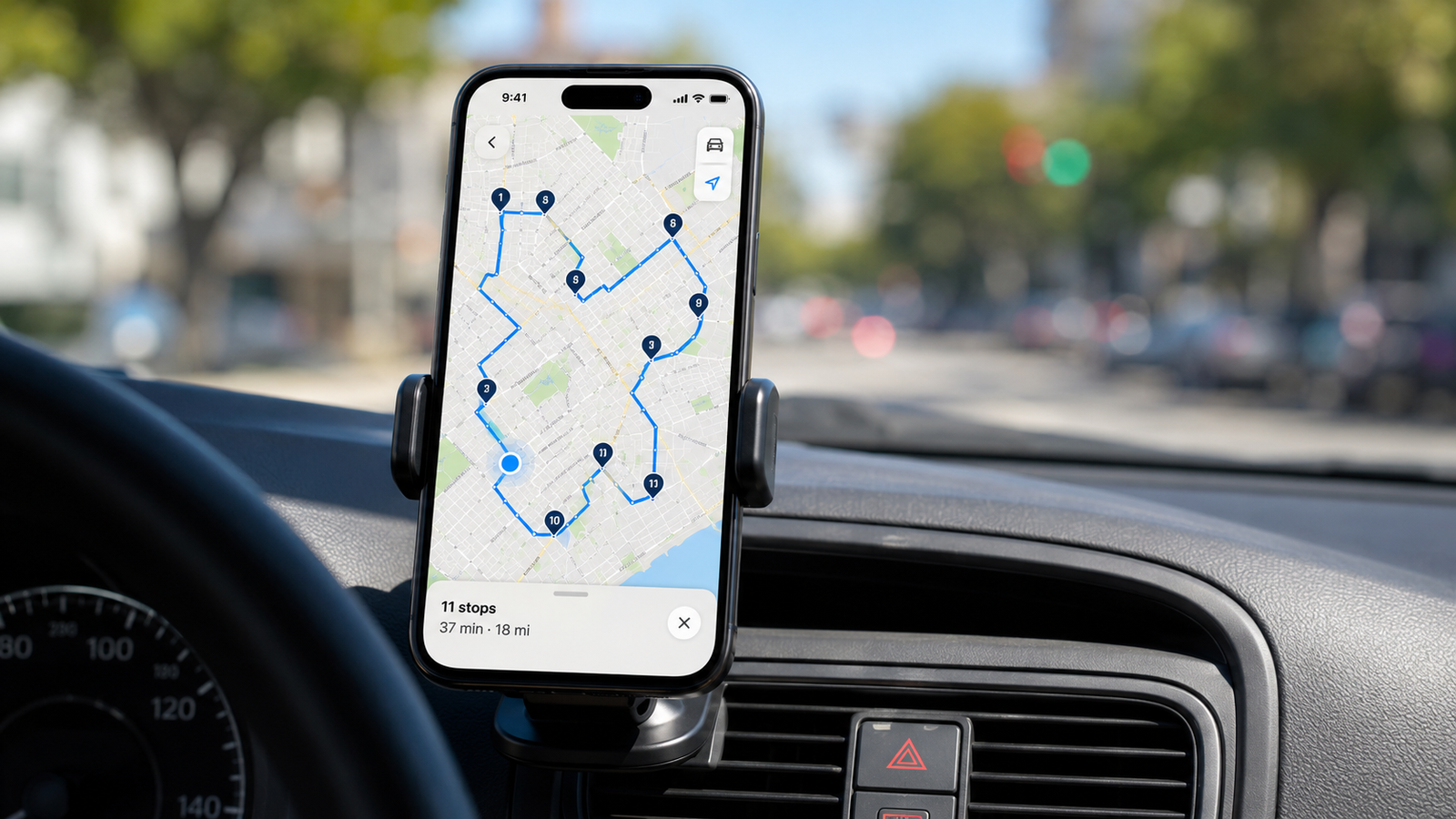
Yes, Apple Maps lets you add multiple stops to a route — up to 15 stops, which is actually more than Google Maps' 10. The feature has been built in since iOS 16 and works across iPhone, iPad, Mac, and CarPlay. But there is one limitation that catches every delivery driver and errand-runner off guard: Apple Maps does not optimize the order of your stops. It drives them in the exact sequence you enter, and reordering is entirely manual.
If you are an iPhone user trying to plan a multi-stop day, this guide covers everything that matters: how many stops Apple Maps allows, how to add and reorder them step by step, the honest answer on route optimization, and how to get an optimized route that still opens in Apple Maps for navigation. All current for 2026.
Love Apple Maps? Keep using it — just smarter.
Delivery Route Planner adds unlimited stops, optimizes the order automatically, then opens each one in Apple Maps with a single tap. You get the navigation you trust, without the 15-stop cap or manual reordering.
How many stops can you add in Apple Maps?
Apple Maps supports up to 15 stops per route. That is a meaningful edge over Google Maps, which caps out at 10 (and counts your start point in that total). For a quick personal trip or a short errand run, 15 stops is plenty.
For professional or gig delivery work, though, 15 stops disappears fast — a single Amazon Flex block or a courier afternoon can easily run forty, fifty, or more drop-offs. Once your day exceeds 15 stops, Apple Maps simply cannot hold the whole route, and you are back to splitting it into chunks. That is the point where most drivers reach for a planner with no stop limit that still hands off to Apple Maps.
How to add multiple stops in Apple Maps (step by step)
Adding stops on your iPhone takes just a few taps:
- Open Apple Maps and search for your final destination.
- Tap the Directions button for driving.
- In the directions panel, tap Add Stop.
- Search for and select the stop you want to include along the way.
- Repeat to add more stops, up to the 15-stop maximum.
- When your list is complete, tap Go to start turn-by-turn navigation.
One quirk worth knowing: by default, Apple Maps adds each new stop to the end of your route. So if you enter stops in the order they came to mind rather than the order you should drive them, you will need to rearrange them — which brings us to the big limitation. If you would rather skip rearranging altogether, you can build the optimized route first and then send it to Apple Maps.
Does Apple Maps optimize route order?
No. This is the question that brings most people to this page, and the answer is clear: Apple Maps does not automatically optimize the order of your stops. It will give you excellent turn-by-turn directions and real-time traffic for the route as you have ordered it — but it will not rearrange your stops into the most efficient sequence.
That means a 12-stop route entered in a careless order can send you from one side of town to the other and back again, wasting time and fuel on backtracking. Apple Maps prioritizes being a great navigation app, not a route-optimization tool. To actually optimize the order, you need a dedicated planner that solves the whole route for you — you can try that on the App Store and watch a scrambled list snap into a clean loop.
How to reorder stops in Apple Maps manually
Since there is no optimize button, here is how to rearrange stops by hand:
- With your stops added, find the list of stops in the directions panel.
- Each stop has a handle of three horizontal lines (the hamburger icon) beside it.
- Press and hold that handle, then drag the stop up or down to a new position.
- Compare the estimated arrival times as you go to judge whether the new order is faster.
- To remove a stop, swipe left on it and tap Delete.
The catch: Manual reordering is fine for a handful of stops, but with 10 or 15 it becomes guesswork — there are far too many possible orderings for a person to evaluate. The "best" order you find by dragging is rarely the actual shortest route, and rebuilding it every morning is slow.
This is the gap a true optimizer closes. Instead of dragging handles and hoping, you let the app compute the shortest sequence and just drive it — see how that workflow looks here.
Where Apple Maps multi-stop falls short for drivers
Apple Maps is genuinely excellent for everyday navigation on iPhone. For real delivery and field work, though, it runs into the same walls every time:
- The 15-stop ceiling. Great for errands, far too low for a delivery route.
- No automatic optimization. You order every stop by hand, with no shortest-time or shortest-distance solver.
- No bulk import. You type each address one at a time — there is no way to paste a list or load a CSV.
- No delivery tools. No proof-of-delivery photos, no per-stop notes or service times, no package tracking.
The smart approach for iPhone users is not to abandon Apple Maps — it is to add a planning layer on top of it. A dedicated route planner handles the heavy lifting (unlimited stops, bulk import, automatic optimization, delivery features), then opens each individual stop in Apple Maps for the navigation you already prefer.
Apple Maps vs Google Maps vs a dedicated planner
| Feature | Apple Maps | Google Maps | Delivery Route Planner |
|---|---|---|---|
| Max stops | 15 | 10 (incl. start) | Unlimited |
| Optimizes stop order | No | No | Yes |
| Bulk import / scan addresses | No | No | Yes |
| Turn-by-turn navigation | Yes | Yes | Via Apple/Google/Waze |
| Proof of delivery & notes | No | No | Yes |
The takeaway: Apple Maps wins on stop count against Google and is a superb navigator, but neither free app optimizes your route. For a few stops, Apple Maps alone is the right call. For a real multi-stop day, pair it with a planner — you can try the combination free.
Built for iPhone. Powered by Apple Maps.
Add unlimited stops, optimize the order in seconds, capture proof of delivery — then navigate every stop in Apple Maps, Google Maps, or Waze with one tap. The route planner made for iOS drivers.
Frequently asked questions
How many stops can you add in Apple Maps?
Apple Maps lets you add up to 15 stops per route, which is more than Google Maps' 10-stop limit. The feature works on iPhone, iPad, Mac, and CarPlay. For routes longer than 15 stops, you need a dedicated route planner that can hold unlimited addresses.
Does Apple Maps optimize the order of stops?
No. Apple Maps drives your stops in the exact order you enter them and does not rearrange them into the most efficient sequence. You can reorder them manually by dragging the hamburger handle next to each stop, but there is no automatic optimization. A dedicated planner is needed to compute the shortest order.
How do I add a stop to a route in Apple Maps?
Search your destination, tap Directions, then tap Add Stop and search for the place you want to include. Repeat for each stop up to the 15-stop maximum, then tap Go. By default each new stop is added to the end of the route, so you may need to reorder them.
How do I rearrange stops in Apple Maps?
In the directions panel, press and hold the three-line hamburger handle next to a stop and drag it up or down to a new position. Compare the estimated arrival times as you rearrange to find a faster order. To remove a stop, swipe left on it and tap Delete.
Can I add more than 15 stops in Apple Maps?
Not within a single route — 15 is the hard cap. You can split your stops into multiple separate routes, but there is no optimization across them. To handle more than 15 stops in one optimized route, use a dedicated route planner that then opens each stop in Apple Maps for navigation.
Is there a route planner that works with Apple Maps?
Yes. Delivery Route Planner is built for iOS, adds unlimited stops, optimizes the route automatically, and opens each stop in Apple Maps, Google Maps, or Waze with a single tap — so you keep Apple Maps for navigation while getting the optimization and capacity it lacks.
apple maps multiple stopsdoes apple maps optimize routehow many stops apple mapsadd stops apple maps iphoneapple maps route plannerreorder stops apple mapsapple maps vs google maps stopsroute planner for apple maps